

Verdict: Buy
Video To Blog AI turns a YouTube video into an SEO-ready WordPress post in about 6 minutes, and I have published 70+ posts with it over the past year. It handles transcription, screenshots, internal and external links, meta data and Gutenberg export on its own. The gaps are small but real: no WordPress category selection from inside the tool, and the meta description does not sync with SEOPress yet.
A year ago I had 400+ YouTube videos and zero blog posts repurposing them, the same library I now optimize with tools like Taja AI for YouTube. Today I have 70+ blog posts generated from those videos, and a good chunk of them are ranking. Below is how I use it in my real workflow, what the output looks like and where it falls short, the same lens I bring to every hands-on AI tool review.
What is Video To Blog AI?
Video To Blog AI (videotoblog.ai) is a SaaS tool that converts YouTube videos into structured, SEO-ready blog posts. You paste a YouTube URL, configure your settings once in a template, and the tool transcribes the video, pulls out key points, auto-generates screenshots from video frames, adds internal and external links, creates a table of contents and FAQ, and exports everything directly to WordPress as Gutenberg blocks.
It is not just a transcript formatter. The output is a structured article with headings, meta title, meta description, URL slug, keyword density, and readability scoring built in.
From YouTube URL to WordPress draft in five steps
- Paste the YouTube URL (or connect your channel for batch processing)
- Select your saved template (settings configured once, applied with one click)
- Hit generate and wait roughly 6 minutes with premium transcription enabled
- Review and edit inside the Video To Blog editor
- Export to WordPress as Gutenberg blocks
The first-time setup takes about 20 minutes as you configure your preferences, and our step-by-step AI guides walk through workflows like this in more depth. After that, your actual hands-on time per post is around 5 minutes.
You can also connect Google Drive and upload video files directly if your content is not on YouTube. The tool connects to multiple WordPress sites, and you pick the target site when you export each post.
Key features I use in every post
Custom instructions: the most important setting
This is what separates passable output from content that actually sounds like you. In the custom instructions field I tell the AI:
- Use my exact words and phrases from the video
- Write in first person
- Optimize for long-tail AI search queries
- Be factual and avoid creative language
- Do not make up data that is not in the video
I also upload a sample of my writing so the AI learns my voice. Without custom instructions you get a competent but generic article. With them you get something that reads like you actually wrote it. Templates save these instructions along with link preferences, transcription quality and visual settings, so every post starts where you want it.
Premium transcription
Standard transcription misses context and often mangles technical terms. Premium transcription costs a bit more per post but catches nuance, especially in tool reviews where accuracy matters. Processing takes around 6 minutes. I have not turned it off once.
The tool also has speaker labeling, which is useful if you are repurposing podcast content with multiple guests.
Automatic screenshots from video frames
This is the feature I show people when they ask why I pay for this tool.
Video To Blog automatically pulls frames from your video and converts them into screenshots with AI-generated captions, SEO-friendly alt text, descriptive filenames, and optional branded backgrounds. When you export to WordPress, those screenshots are uploaded directly to your media library and show up in the post already embedded and formatted.
I went from spending 30 minutes per post manually capturing and formatting screenshots to spending zero minutes on it.
YouTube chapters as headings
If you use YouTube chapters in your videos (and you should), Video To Blog converts those chapters directly into H2 and H3 headings in the blog post. Plan your video structure and you get a properly outlined article for free. I record with this in mind now.
Link settings
Internal links: Connect your sitemap and the AI identifies contextually relevant links to your existing pages. The suggestions are not perfect but they are a useful starting point.
For external links, the tool adds authority links to third-party sources. On my posts it consistently linked to official documentation, Wikipedia, and reputable brand sites, which were relevant rather than random.
It can also pull links directly from your video description and work them into the post. If your video description already has affiliate links or resource links, they carry over.
Blog post scoring
Before you export, the editor shows you a score covering readability grade, word count, long paragraph flags, keyword density, meta title length, and meta description quality. The tool generates a meta title, meta description, and URL slug automatically.
One-click WordPress export
The export sends Gutenberg blocks, not raw HTML. This is important because Gutenberg blocks render with your theme styles, stay editable in the block editor, and do not create formatting headaches the way raw HTML imports often do. The table of contents comes through as HTML, so it works with any theme and needs no plugin.
You can also export as HTML, Markdown, Word, PDF, or email copy.
Social media repurposing
Video To Blog also generates promotional copy for Instagram, Facebook, LinkedIn, WhatsApp, and email newsletters from the same video, though for native short-form clips an AI TikTok video generator is a better fit. I use this occasionally but not on every post.
Four gaps I still work around
No category selection on export. I have to jump into WordPress and assign the category after every publish. Minor, but it adds a step. Feature request submitted, founder acknowledged it.
The meta description does not write directly to SEOPress fields on export. I copy-paste it manually, which takes about 20 seconds. The founder knows about it.
Video embed is not full-width by default. The tool embeds the video at a fixed width. I delete the embed block and re-paste the YouTube URL in Gutenberg to get full width. Feature request submitted.
Automation mode can publish new YouTube videos as blog posts without any manual review, and I do not use it. I always read through the draft before publishing because the AI occasionally misses context or gets a technical detail slightly off, especially numbers and product names. Five minutes of review protects your credibility and your rankings.
Can’t you just use ChatGPT for this?
Technically yes. Paste your transcript into ChatGPT, ask it to write a blog post, format it yourself, grab screenshots manually, upload them, write a meta description, generate a URL slug, format everything as Gutenberg blocks, and upload it all to WordPress.
That workflow takes 45 to 90 minutes per post. Video To Blog compresses it to 5 to 6 minutes and handles the WordPress integration, screenshot capture and upload, meta generation, and block formatting automatically. At one post per week that is over 40 hours saved per year.
If you already have a structured workflow and genuinely enjoy the manual process, stick with it. If you want to scale video repurposing without scaling your time, this is the tool.
Video To Blog AI pricing and the AppSumo deal
Video To Blog AI offers monthly and annual subscription plans through their website at videotoblog.ai. An AppSumo lifetime deal has been available periodically, which removes the recurring cost entirely, and if you catch it during a promotion the economics are excellent. Check their current pricing page for up-to-date plans, as these change during promotions.
At the volume I publish (multiple posts per week), the per-post cost is small next to the time it saves, and if you are still comparing options our roundup of the best AI content tools puts the category in context. For any current Video To Blog promotion, check the AI lifetime deals list.
Buy it if you publish video weekly, wait if you publish monthly
Buy if you create YouTube content and want a systematic way to build a blog at the same time. The template system, automatic screenshots, YouTube chapter integration, and one-click WordPress export are the parts that save the time, and the gaps above are inconveniences, not dealbreakers.
Wait if you only publish videos once a month or less. The investment in learning the template setup pays off at volume. Low-frequency creators might not see the ROI.
Skip if you do not create video content. This tool is purpose-built for video repurposing, so if you are creating clips from scratch a dedicated Steve AI video maker makes more sense. If you are starting from text, audio, or scratch, there are better options.
What tips it for me is the developer. I have submitted three feature requests in the past year, he has acknowledged all of them and has already shipped several improvements. If the gaps I mentioned bother you, check the changelog before buying.
Other questions about Video To Blog AI
Can I customize the length and language of the generated blog posts?
Yes. Length has an Auto setting (recommended) or you can set a manual word count target. Language defaults to Auto and matches the video language, or you can specify a target language for translated posts.
Can I regenerate a post if I am not happy with the output?
Yes. You can regenerate inside the editor. With well-configured custom instructions most posts will not need a full regeneration, just minor edits.
Does Video To Blog analyze the video itself or just the audio?
It processes the audio transcript and pulls visual frames for screenshots. It does not do scene-by-scene visual analysis.
Does it write the FAQ section for me?
Yes. The FAQ it generates is based on questions that actually come up in the video, which makes it more useful than a generic FAQ block.
Related Posts

I tested AgainstData on 355 pages of Gmail data. Bulk unsubscribe, personal data deletion requests, pricing, and whether...
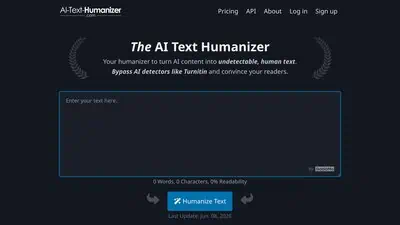
AI-Text-Humanizer.com took a 132-word ChatGPT paragraph from 100% AI to 0% on ZeroGPT but flattens your voice. Buy the $...
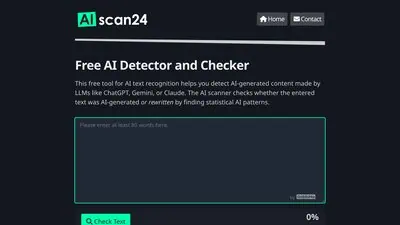
AIscan24 is a free, no-signup AI detector: it caught pure ChatGPT text at 100% but scored my handwritten paragraph 80%. ...
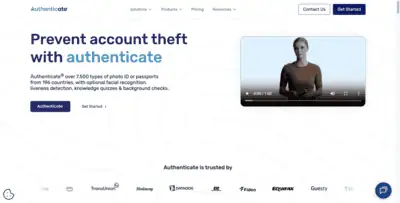
Honest Aithenticate review after hands-on testing. Does this AI disclosure badge tool meet EU AI Act requirements? Prici...

My hands-on Answer Socrates review covering all features, free plan limits, pricing, and how it compares to AlsoAsked. I...

I’ve spent $4,200 on 118 AppSumo lifetime deals over 5 years. Here’s my honest review: what works, what fails, and wheth...